Robotics and Energy Logo

Web-Controlled RGB LED Strip: DIY Arduino Project

Arduino remote control LED Strip via a web server — control LED strip with your phone or any device of your choice

RGB LED strip controlled by Arduino

Build an Arduino-controlled RGB LED strip accessible through a local network interface, allowing control from any smart device, including your phone. The project covers lighting effects, including customizable blinking and timing.

Upon completion, you'll have a fully operational web-controlled LED Strip lighting system to proudly share with friends and family.

You can download the code of this project here. The code will be fully explained in the software section below.

What will we learn

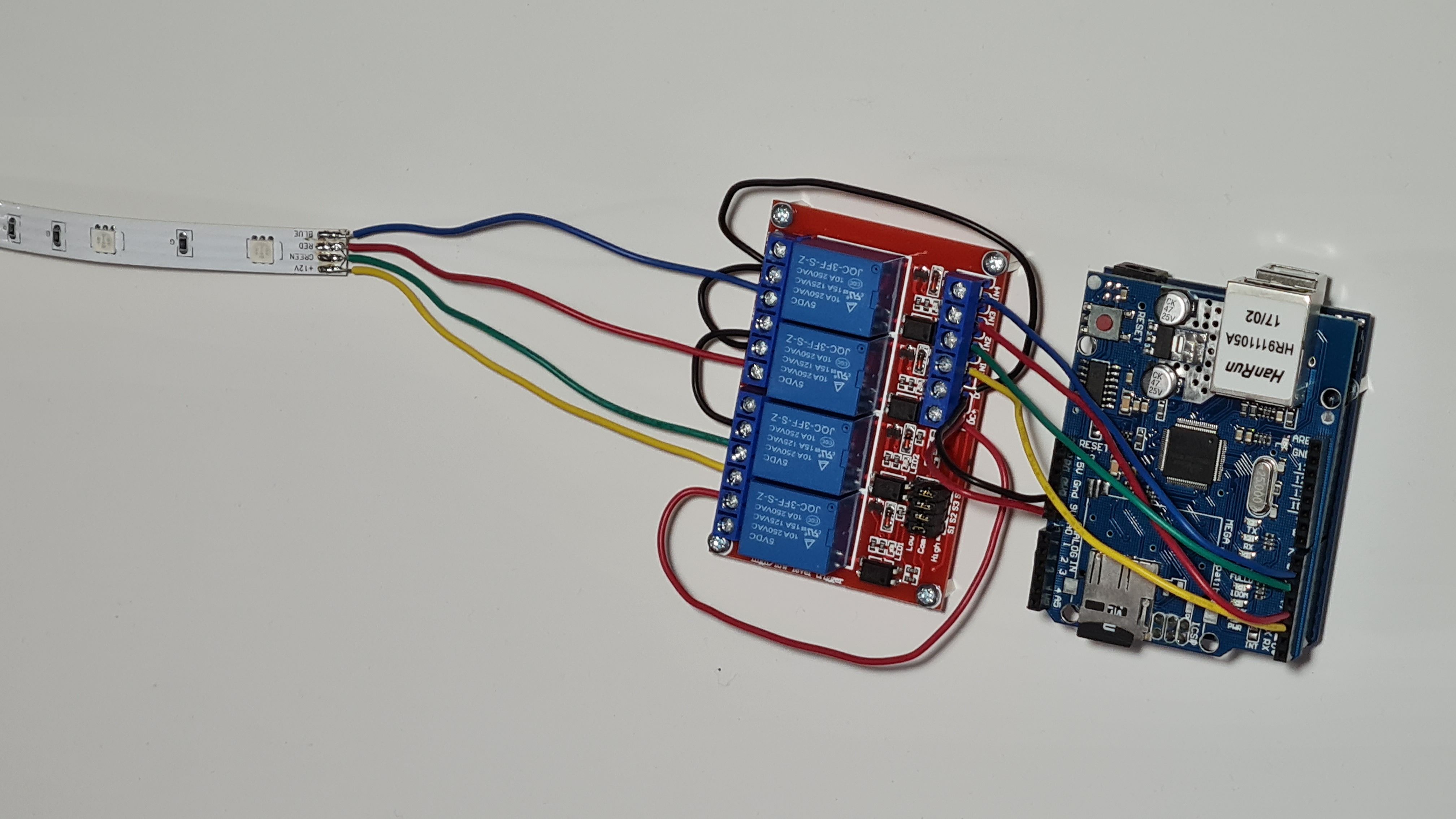
In the Web-Controlled RGB LED Strip DIY project, you will learn how to use an Arduino and an Ethernet shield to create a small HTTP web server on your LAN that controls an RGB LED strip with an interactive web interface. You will also discover how to use the relay unit of the Arduino to enable a stronger voltage source to power up the RGB LED strip. Additionally, you will become familiar with JavaScript and HTML and use them to create the control interface for the LED strip.

Primary parts for this project will be:

Programming languages used:

  • C (Arduino compatible)
  • HTML
  • CSS
  • JavaScript

Hardware

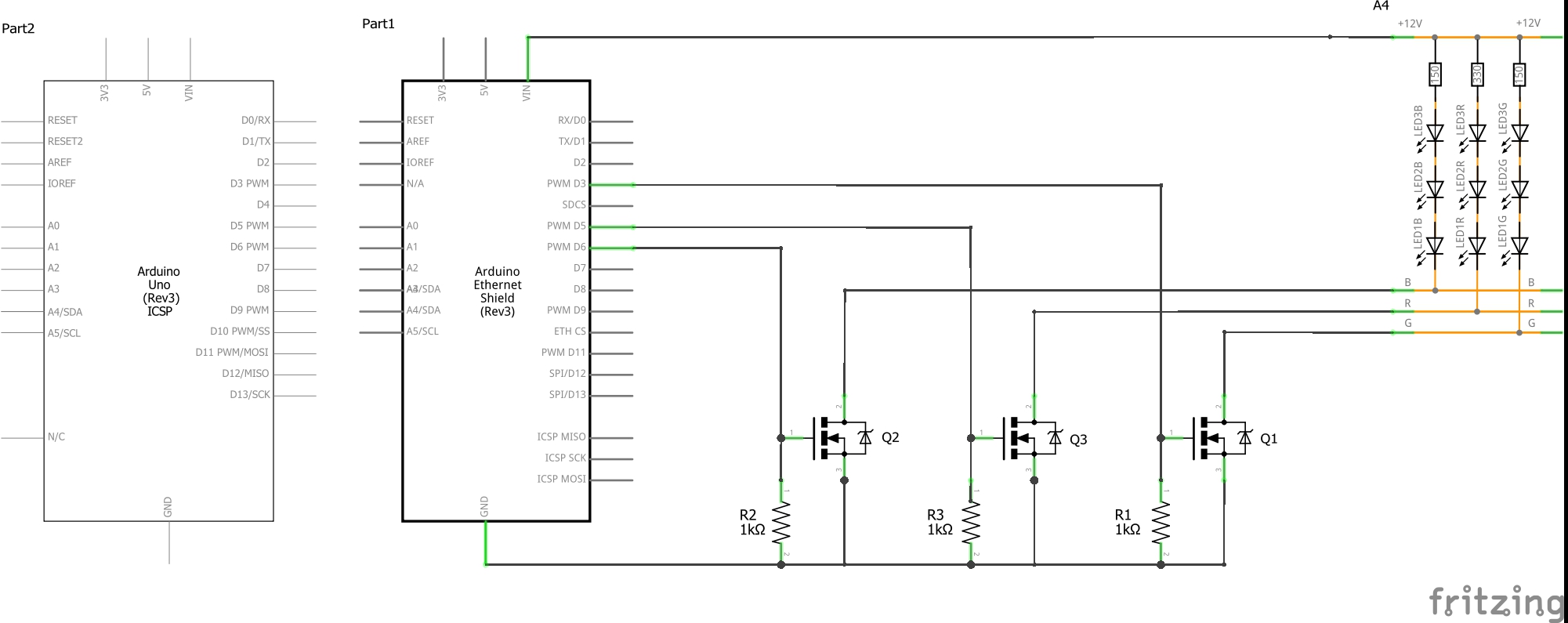
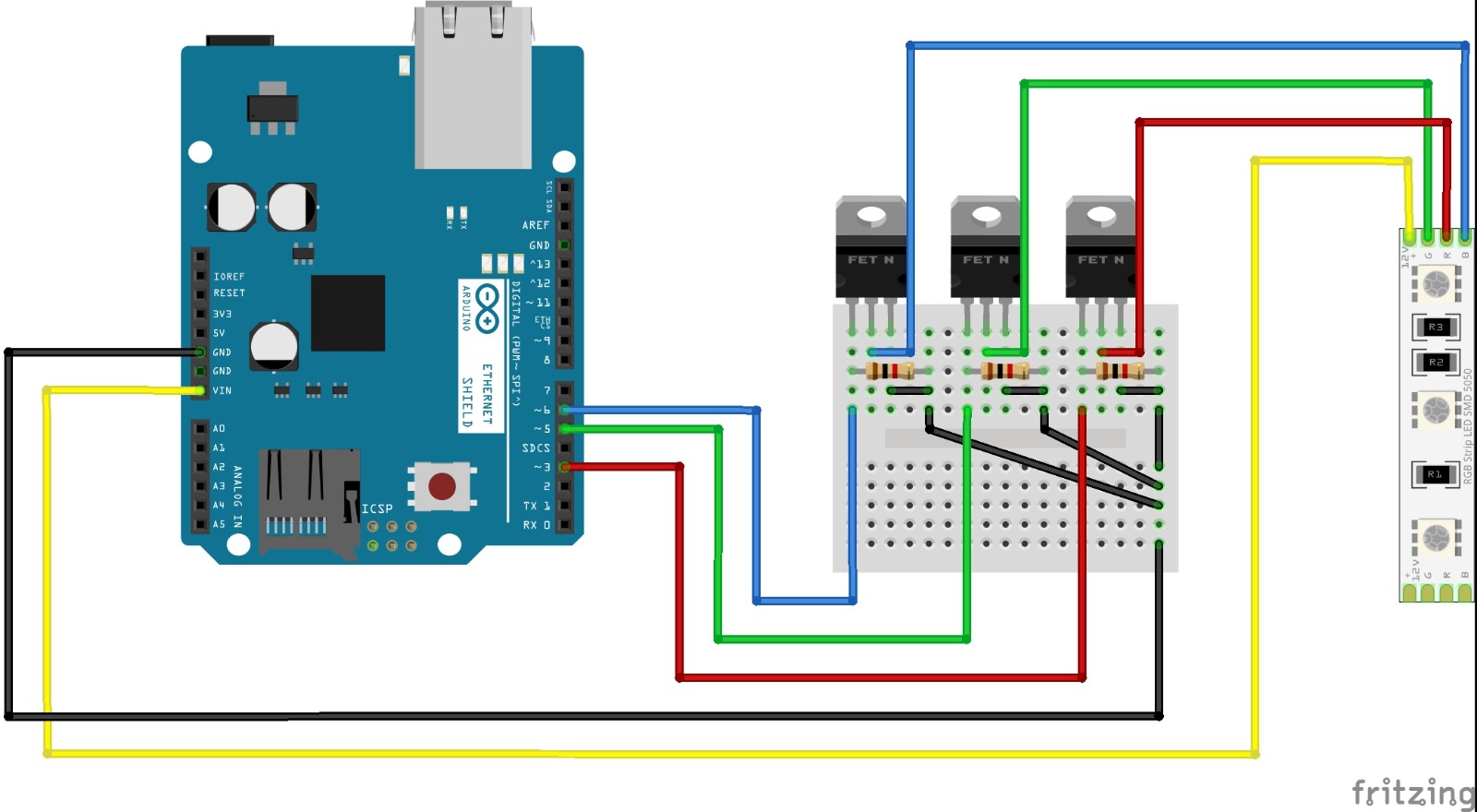
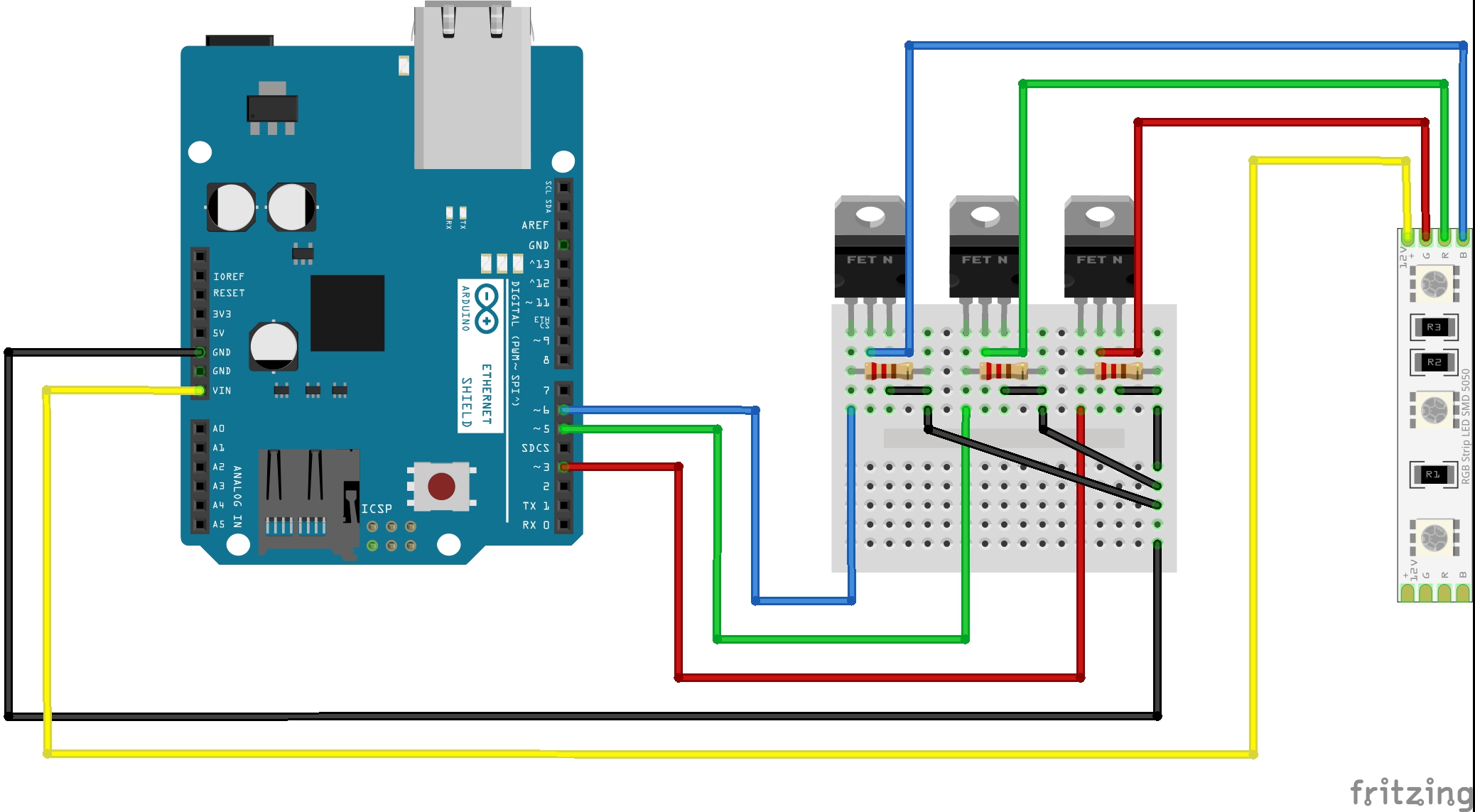
In terms of hardware the project is fairly simple. The Ethernet shield is applied pin to pin directly on the UNO board. We need to connect the 4 wires of the LED strip to the Arduino, however we cannot connect it directly to the GPIO pins because they cannot supply enough current and voltage to the strip — the strip uses 12V and up to 1A of current. Therefore we will use MOSFET transistors to transfer power from the Arduino Vin pin which is connected to the 12V power jack.

The MOSFET transistors in this circuit will act like switches that are turned on and off electrically, thousands of times a second. We control them via the Arduino GPIO pins. In addition, we shall use PWM pins. When using PWM (Pulse Width Modulation) we turn the transistor and the LEDs on and off a few thousand times a second while controlling the width of the pulse — this allows us to control the brightness of the LEDs on the strip.

First thing: put the Arduino Ethernet shield directly on the Arduino. Now we use the GPIO of the Arduino via the Ethernet shield.

Missing

MOSFET wiring schematic — Arduino to LED strip via IRF540N transistors

LED strip electronic schematicCorrect Arduino LED strip wiring

Network Configuration

We will need to program a web server on the Arduino and connect it to the network using a Modem or a Router. I used a TP-Link TL-WR841N Router which supports Ethernet connection and Wireless. Default IP: 192.168.0.1, User: admin, Password: admin. Connect an Ethernet cable to the Shield's Ethernet port. A second cable can connect to a PC, or use the wireless interface.

Web LED strip full schematic

Software

This project is an improvement of the previous LED control project. Most of this project and its added value is the software and is the bigger challenge, as it is in the industry of WEB development. We will cover the front end and the back end. You will experience the glory of Full Stack WEB development. I'm going to assume that you are somewhat familiar with the programming languages we are going to use and know the basics.

An Arduino is a microcontroller based development board programmable using the ArduinoIDE. We need to turn this into a Server which will host connecting clients, handle requests and upload the site's hyper text to the user's browser. The Ethernet shield supports an SD card slot — we store the web files on it and load them from there when needed.

Missing

Server algorithm flowchart

Programming the website files

Each page's code will be a different .htm file. We can edit them in any text editor e.g. Notepad++, or Visual Studio Code. We can open them and run them directly in the browser to preview them.

  • login.htm — Login page
  • main.htm — Menu page
  • control.htm — LED control page UI
  • 404.htm — Page not found error
  • 401.htm — Unauthorized page if authentication failed
  • style.css — Graphical design of the pages
  • elec.jpg — Background image for the control page

login.htm

<!DOCTYPE HTML>
<html>
    <head>
        <script>
        </script>
    </head>
    <body>
    </body>
</html>
<title>Login</title>
<link rel="stylesheet" href="style.css"/>

The login() function takes data from #user and #pass fields and sends it as an HTTP request — e.g. user=user&pass=1234. The timeFunction() returns the local system time.

<Script>
    function login()
    {
        const user = document.querySelector('#user');
        const pass = document.querySelector('#pass');
        const self = event.target;
        self.disabled = true;
        fetch(`user=${user.value}&pass=${pass.value}`).then(reply => {
            if (reply.status == 200)
            {
                window.location = 'main.htm';
            }
            else
            {
                pass.value = '';
            }
            self.disabled = false;
        }).catch(e => {
            self.disabled = false;
        })
    }

    function timeFunction()
    {
        var now = new Date();
        return now.toLocaleString();
    }
    setInterval("timeFunction()", 1000);
    var displayTime = timeFunction();
</Script>
<h3>Time: <script>document.write(timeFunction());</script></h3>

<div class="login">
    <form>
        Username:<input type="text" id="user"/><br/>
        Password:<input type="password" id="pass"/><br/>
        <button onclick="login()">Login</button>
    </form>
</div>

Missing

Login page screenshot

CSS — please notice: class objects use a dot . and id objects use a sharp #

.login {
  position: absolute;
  top: calc(50% - 35px);
  left: calc(50% - 125px);
  border: 1px solid white;
  width: 250px;
  height: 80px;
  padding: 10px;
}

#btnSubmit {
  position: absolute;
  margin: 10px;
  left: 100px;
}

main.htm

First make a .welcome class in style.css to position everything relative to the center of the screen — that way the figure stays centered on different screen sizes.

.welcome {
  position: absolute;
  top: 35px;
  left: calc(50% - 100px);
}

This page could potentially contain access to many other pages or databases in a bigger scale project — like a smart house control with AC, power management, cameras, etc. But in our case the code is short:

<!DOCTYPE HTML>
<html>
    <head>
        <title>Main page</title>
        <link rel="stylesheet" href="style.css"/>
    </head>
    <body>
        <div class="welcome">
            <h1>Welcome root!</h1>
            |<a href="control.htm">Go to control page</a>|
            <a href="login.htm">Logout</a>|
        <div>
    </body>
</html>

The href function will immediately send a request to the server to load the given page.

Missing

Main menu page screenshot

control.htm

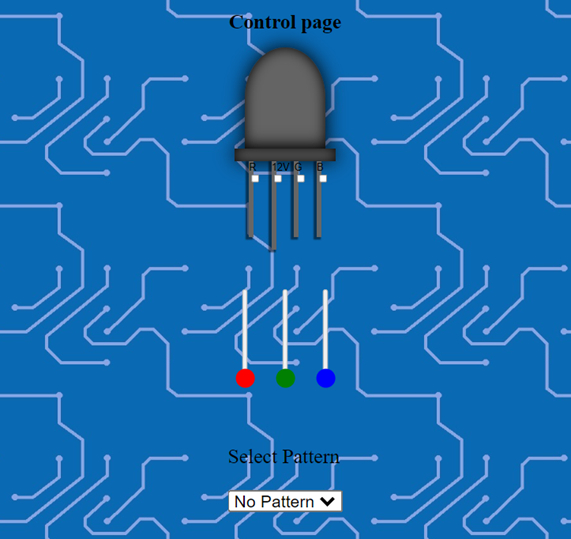
CSS for the LED figure:

.LED {
  display: flex;
  justify-content: center;
  flex-direction: column;
  align-items: center;
}

/* LED head */
.sqr {
  box-shadow: inset 0 0 20px rgba(0,0,0,1), 0 0 30px 0 rgba(0,0,0,1);
  background-color: rgba(100, 100, 100, 1);
  width: 8em;
  height: 160px;
  border-top-left-radius: 50%;
  border-top-right-radius: 50%;
}

/* LED base ring */
.rctngl {
  box-shadow: inset 0 0 20px rgba(0,0,0,1), 0 0 30px 0 rgba(0,0,0,1);
  background-color: rgba(100, 100, 100, 1);
  width: 10em;
  height: 20px;
}

/* LED legs */
.ledleg {
  font-family: arial;
  background-color: #666666;
  box-shadow: -3px 2px 2px 2px rgba(0,0,0,0.5);
  width: 5%;
  height: 120px;
}

/* 12V leg is longer */
#power12 { height: 140px; }

.spaced-led-legs-container {
  margin-bottom: 3%;
  display: flex;
  justify-content: space-around;
}

.main-container {
  display: flex;
  flex-direction: column;
  justify-content: center;
}

display: flex makes it a Flexible Box Layout Module — easier to design flexible responsive layouts without using float or positioning.

HTML body with LED figure and checkboxes:

<body>
    <div class="main-container">
        <h1>Control page</h1>
        <div class="LED">
            <div class="sqr"></div>
            <div class="rctngl"></div>
            <div class="spaced-led-legs-container">
                <div class="ledleg">R<input type="checkbox" name="Red" onClick="clickFunc()"></div>
                <div class="ledleg" id="power12">12V<input type="checkbox" name="Vin" onClick="clickFunc()"></div>
                <div class="ledleg">G<input type="checkbox" name="Green" onClick="clickFunc()"></div>
                <div class="ledleg">B<input type="checkbox" name="Blue" onClick="clickFunc()"></div>
            </div>

Missing

LED control interface screenshot

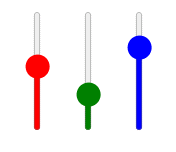
RGB sliders (vertical, 0–255 for each channel):

<div class="slider-container">
     <input type="range" id="slideR" min="0" max="255" value="0" oninput="sliderValues()">
     <input type="range" id="slideG" min="0" max="255" value="0" oninput="sliderValues()">
     <input type="range" id="slideB" min="0" max="255" value="0" oninput="sliderValues()">
</div>
.slider-container {
  display: flex;
  flex-direction: row;
  justify-content: center;
}

input[type="range"] {
  width: 15%;
  cursor: pointer;
  appearance: slider-vertical;
  height: 150px;
}

input#slideR[type=range] { accent-color: Red; }
input#slideG[type=range] { accent-color: Green; }
input#slideB[type=range] { accent-color: Blue; }

accent-color: will make the slider fill the color as we move the cursor up.

Pattern selector dropdown:

<div class="pattern-selector-container">
    <p>Select Pattern</p>
    <select onchange="playPattern(this.value)">
        <option value="0">No Pattern</option>
        <option value="1">Blink</option>
        <option value="2">Flash</option>
        <option value="3">Sweep</option>
    </select>
</div>
.pattern-selector-container {
  margin-top: 5%;
  transform: scale(2);
}
LED strip control dashboardRGB controls interface

Complete JavaScript for the control page:

var output_var;          // RGB Value format: VRRRGGGBBB
var last_output;         // To prevent unnecessary traffic
var slRvalue;
var slGvalue;
var slBvalue;
let timerR, timerG, timerB;
var isPatterned = false;

function httpGet(theUrl)
{
    var xmlHttp = new XMLHttpRequest();
    xmlHttp.open("GET", theUrl, false);
    xmlHttp.send(null);
    return xmlHttp.responseText;
}

function rgb(r, g, b) { return "rgb(" + r + "," + g + "," + b + ")"; }

function checkboxOn(name) { return document.getElementsByName(name)[0].checked; }

function sliderValue(name) { return parseInt(document.getElementById(name).value); }

function sliderValues()
{
    if (!isPatterned) {
        slRvalue = sliderValue("slideR");
        slGvalue = sliderValue("slideG");
        slBvalue = sliderValue("slideB");
        clickFunc();
    }
}

function inputHandle()
{
    var valueR = 0, valueG = 0, valueB = 0;
    output_var = 0;
    if (checkboxOn("Vin"))
    {
        output_var += 1 * 1000000000;
        if (checkboxOn("Red"))   { output_var += slRvalue * 1000000; valueR = slRvalue; }
        if (checkboxOn("Green")) { output_var += slGvalue * 1000;    valueG = slGvalue; }
        if (checkboxOn("Blue"))  { output_var += slBvalue;           valueB = slBvalue; }
        if (valueR > 55 || valueG > 55 || valueB > 55)
            return rgb(valueR, valueG, valueB);
        else return rgb(100, 100, 100);
    }
    else return rgb(100, 100, 100);
}

function ledColor(color)
{
    var shade;
    if (color == rgb(100, 100, 100))
        shade = "inset 0 0 20px rgba(0,0,0,1), 0 0 30px 0 rgba(0,0,0,1)";
    else {
        shade = "inset 0 0 20px rgba(0,0,0,1), 0 0 150px 0 ";
        shade = shade.concat(color);
    }
    document.getElementsByClassName("sqr")[0].style.backgroundColor = color;
    document.getElementsByClassName("sqr")[0].style.boxShadow = shade;
    document.getElementsByClassName("rctngl")[0].style.backgroundColor = color;
    document.getElementsByClassName("rctngl")[0].style.boxShadow = shade;
}

function clickFunc()
{
    ledColor(inputHandle());
    if (output_var != last_output) {
        last_output = output_var;
        httpGet("click?=" + output_var.toString() + "x");
    }
}

function patternMode(mode, colorID, updown)
{
    if (mode == 1) // Blink
    {
        switch (colorID) {
            case "Red":   slRvalue = (updown == 100) ? 255 : 0; break;
            case "Green": slGvalue = (updown == 100) ? 255 : 0; break;
            case "Blue":  slBvalue = (updown == 100) ? 255 : 0; break;
        }
    }
    else if (mode == 2) // Flash
    {
        if (updown == 100 && checkboxOn(colorID)) {
            switch (colorID) {
                case "Red":   slRvalue=255; slGvalue=0;   slBvalue=0;   break;
                case "Green": slRvalue=0;   slGvalue=255; slBvalue=0;   break;
                case "Blue":  slRvalue=0;   slGvalue=0;   slBvalue=255; break;
            }
        }
    }
    else if (mode == 3) // Sweep
    {
        updown = Math.floor(updown * 2.5);
        switch (colorID) {
            case "Red":   slRvalue = updown; break;
            case "Green": slGvalue = updown; break;
            case "Blue":  slBvalue = updown; break;
        }
    }
    clickFunc();
}

function playPattern(patternId)
{
    var modeId = parseInt(patternId);
    var countR=0, countG=0, countB=0;
    var Rflag=false, Gflag=false, Bflag=false;
    clearTimeout(timerR);
    clearTimeout(timerG);
    clearTimeout(timerB);

    if (modeId == 0) { isPatterned = false; return; }
    isPatterned = true;

    timerR = setTimeout(function tick() {
        timerR = setTimeout(tick, (sliderValue("slideR") / 10) + 5);
        Rflag ? countR-- : countR++;
        if (countR == 100) Rflag = true;
        if (countR == 0)   Rflag = false;
        patternMode(modeId, "Red", countR);
    }, (sliderValue("slideR") / 10) + 5);

    timerG = setTimeout(function tick() {
        timerG = setTimeout(tick, (sliderValue("slideG") / 10) + 5);
        Gflag ? countG-- : countG++;
        if (countG == 100) Gflag = true;
        if (countG == 0)   Gflag = false;
        patternMode(modeId, "Green", countG);
    }, (sliderValue("slideG") / 10) + 5);

    timerB = setTimeout(function tick() {
        timerB = setTimeout(tick, (sliderValue("slideB") / 10) + 5);
        Bflag ? countB-- : countB++;
        if (countB == 100) Bflag = true;
        if (countB == 0)   Bflag = false;
        patternMode(modeId, "Blue", countB);
    }, (sliderValue("slideB") / 10) + 5);
}

Error Handling Pages

401.htm:

<!DOCTYPE HTML>
<head><title>401 Error</title></head>
<body><style>body{background-color: lightblue;}</style>
<h1>401: Authentication error.<br/>Are you authorized!?</h1>
</body>

404.htm:

<!DOCTYPE HTML>
<head><title>404 Error</title></head>
<body><style>body{background-color: lightblue;}</style>
<h1>404 No such page.</h1>
</body>

There is no need to edit the pages in CSS. That concludes our Website coding. Save all files on the SD card and insert it into the Ethernet shield.

Arduino Server Code

The server is set up with a static IP (192.168.0.12) on port 80. ThecontrolHandler() function receives the RGB value as a single integer in the format VRRRGGGBBB (e.g. 1255255000 = power on, red 255, green 255, blue 0).

Authentication: User root / Password 1234. The server responds with 200/401/404 as appropriate.

Upload the following code to your Arduino:

1."text-[#c62828]">// Arduino WebPage LED strip control server
2."text-[#c62828]">// Author: Robotics & Energy
3."text-[#c62828]">// April, 2023
4.#include <SPI.h>
5.#include <Ethernet.h>
6.#include <SD.h>
7.#define REQ_BUF_SZ 50
8.
9.#define RED 3
10.#define GREEN 5
11.#define BLUE 6
12.#define PWR 2
13.
14.byte mac[] = { 0xDE, 0xAD, 0xBE, 0xEF, 0xFE, 0xED };
15.#define IP IPAddress(192,168,0,12)
16.
17.EthernetServer server(80);
18.File webFile;
19.char HTTP_req[REQ_BUF_SZ] = {0};
20.byte req_index = 0;
21.bool root = false;
22.
23.void StrClear(char *str, char len)
24.{
25. for (int i = 0; i < len; i++)
26. str[i] = 0;
27.}
28.
29.byte StrContains(char *str, char *sfind)
30.{
31. #define LEN strlen(str)
32. byte found = 0;
33. byte index = 0;
34. if (strlen(sfind) > LEN) return 0;
35. while (index < LEN)
36. {
37. if (str[index] == sfind[found])
38. {
39. found++;
40. if (strlen(sfind) == found) return index;
41. }
42. else found = 0;
43. index++;
44. }
45. return 0;
46.}
47.
48.void controlHandler(unsigned long int dataRGB) "text-[#c62828]">// dataRGB = VRRRGGGBBB
49.{
50. byte P = (byte)((dataRGB / 1000000000) );
51. byte R = (byte)((dataRGB / 1000000) % 1000);
52. byte G = (byte)((dataRGB / 1000) % 1000);
53. byte B = (byte)((dataRGB) % 1000);
54.
55. digitalWrite(PWR, P);
56. analogWrite(RED, R);
57. analogWrite(GREEN, G);
58. analogWrite(BLUE, B);
59.}
60.
61.void setup()
62.{
63. pinMode(13, OUTPUT);
64. pinMode(RED, OUTPUT);
65. pinMode(GREEN, OUTPUT);
66. pinMode(BLUE, OUTPUT);
67. pinMode(PWR, OUTPUT);
68. digitalWrite(13, LOW);
69. digitalWrite(PWR, LOW);
70. analogWrite(RED, 0);
71. analogWrite(GREEN, 0);
72. analogWrite(BLUE, 0);
73.
74. Serial.begin(230400);
75. Serial.println("Initializing SD card...");
76. if (!SD.begin(4))
77. {
78. Serial.println("ERROR - SD card initialization failed!");
79. return;
80. }
81. Serial.println("SUCCESS - SD card initialized.");
82. Ethernet.begin(mac, IP);
83. server.begin();
84.}
85.
86.void loop()
87.{
88. EthernetClient client = server.available();
89. if (client)
90. {
91. bool currentLineIsBlank = true;
92. while (client.connected())
93. {
94. if (client.available())
95. {
96. char c = client.read();
97. if (req_index < (REQ_BUF_SZ - 1))
98. {
99. HTTP_req[req_index] = c;
100. req_index++;
101. }
102. Serial.print(c);
103. if (c == '\n' && currentLineIsBlank)
104. {
105. if (root)
106. {
107. if (StrContains(HTTP_req, "GET / ") || StrContains(HTTP_req, "GET /login.htm"))
108. {
109. root = false;
110. client.println("HTTP/1.1 200 OK");
111. client.println("Content-Type: text/html");
112. client.println("Connnection: close");
113. client.println();
114. webFile = SD.open("login.htm");
115. }
116. else if (StrContains(HTTP_req, "control.htm"))
117. {
118. client.println("HTTP/1.1 200 OK");
119. client.println("Content-Type: text/html");
120. client.println("Connnection: close");
121. client.println();
122. webFile = SD.open("control.htm");
123. }
124. else if (StrContains(HTTP_req, "main.htm"))
125. {
126. client.println("HTTP/1.1 200 OK");
127. client.println("Content-Type: text/html");
128. client.println("Connnection: close");
129. client.println();
130. webFile = SD.open("main.htm");
131. }
132. else if (StrContains(HTTP_req, "elec.jpg"))
133. {
134. client.println("HTTP/1.1 200 OK");
135. client.println();
136. webFile = SD.open("elec.jpg");
137. }
138. else if (StrContains(HTTP_req, "style.css"))
139. {
140. client.println("HTTP/1.1 200 OK");
141. client.println("Content-Type: text/css");
142. client.println("Connnection: close");
143. client.println();
144. webFile = SD.open("style.css");
145. }
146. else if (StrContains(HTTP_req, "click?"))
147. {
148. client.println("HTTP/1.1 200 OK");
149. client.println();
150. unsigned long int result = 0;
151. sscanf(HTTP_req, "GET /click?=%lux HTTP/1.1", &result);
152. controlHandler(result);
153. }
154. else
155. {
156. client.println("HTTP/4.5 404 Not Found");
157. client.println("Content-Type: text/html");
158. client.println("Connnection: close");
159. client.println();
160. webFile = SD.open("404.htm");
161. }
162. }
163. else
164. {
165. if (StrContains(HTTP_req, "GET / ") || StrContains(HTTP_req, "GET /login.htm"))
166. {
167. client.println("HTTP/1.1 200 OK");
168. client.println("Content-Type: text/html");
169. client.println("Connnection: close");
170. client.println();
171. webFile = SD.open("login.htm");
172. }
173. else if (StrContains(HTTP_req, "user=root&pass=1234"))
174. {
175. root = true;
176. client.println("HTTP/1.1 200 OK");
177. client.println("Content-Type: text/html");
178. client.println("Connnection: close");
179. client.println();
180. webFile = SD.open("main.htm");
181. }
182. else if (StrContains(HTTP_req, "style.css"))
183. {
184. client.println("HTTP/1.1 200 OK");
185. client.println("Content-Type: text/css");
186. client.println("Connnection: close");
187. client.println();
188. webFile = SD.open("style.css");
189. }
190. else
191. {
192. client.println("HTTP/4.2 401 Unauthorized");
193. client.println("Content-Type: text/html");
194. client.println("Connnection: close");
195. client.println();
196. webFile = SD.open("401.htm");
197. }
198. }
199. if (webFile)
200. {
201. while (webFile.available())
202. client.write(webFile.read());
203. webFile.close();
204. }
205. req_index = 0;
206. StrClear(HTTP_req, REQ_BUF_SZ);
207. break;
208. }
209. if (c == '\n')
210. currentLineIsBlank = true;
211. else if (c != '\r')
212. currentLineIsBlank = false;
213. }
214. }
215. delay(1);
216. client.stop();
217. }
218.}

Summary

Through this project, we've gained a hands-on understanding of creating a website and configuring a web server on an Arduino. We experienced the fundamentals of web development and the exciting world of IoT. Our exploration extended to include the integration of the MOSFET and the relay module to manage current and voltage according to each component's requirements. This project equips us with the basics to create more advanced and practical projects.

Thank you

We thank you for learning and hopefully completing our project. We are looking forward to hearing from you in the comment section. Questions and constructive criticism are welcome.

We would like to know what you think about our Web-Controlled RGB LED Strip Arduino Project